
Connector
Connect HireFrog to Claude or ChatGPT
It takes about two minutes. You need a HireFrog account and Claude or ChatGPT.
The address you’ll paste in either assistant:
https://mcp.hirefrog.co/mcpClaude and ChatGPT rename their menus from time to time, so the names below may differ slightly from what you see. In ChatGPT, the menu may be called Connectors, Apps or Plugins.
Connect to Claude
- In Claude (on the web or in the desktop app), open Settings → Connectors and choose Add custom connector.
- Name: HireFrog. URL:
https://mcp.hirefrog.co/mcp. - Click Connect. Sign in to HireFrog if asked, check that the approval page says it’s connecting to Claude (claude.ai), and approve.
On Claude Team and Enterprise plans, an Owner adds the connector for the organization first.
Connect to ChatGPT
- In ChatGPT, open Plugins → Add (it may say Connectors or Apps instead of Plugins) and choose Add custom MCP server.
- Fill in:
- Icon (optional): download the HireFrog icon (PNG, 256×256, under 10 KB, as ChatGPT requires).
- Name: HireFrog
- Description: Your HireFrog job search: agents, roles in your pipeline and a summary of your profile.
- Connection: Server URL,
https://mcp.hirefrog.co/mcp - Authentication: OAuth
- Open Advanced OAuth settings and keep only the default scopes
openidandoffline_access. HireFrog doesn’t need your email, phone or profile. - Tick I understand and want to continue, then Create as a plugin.
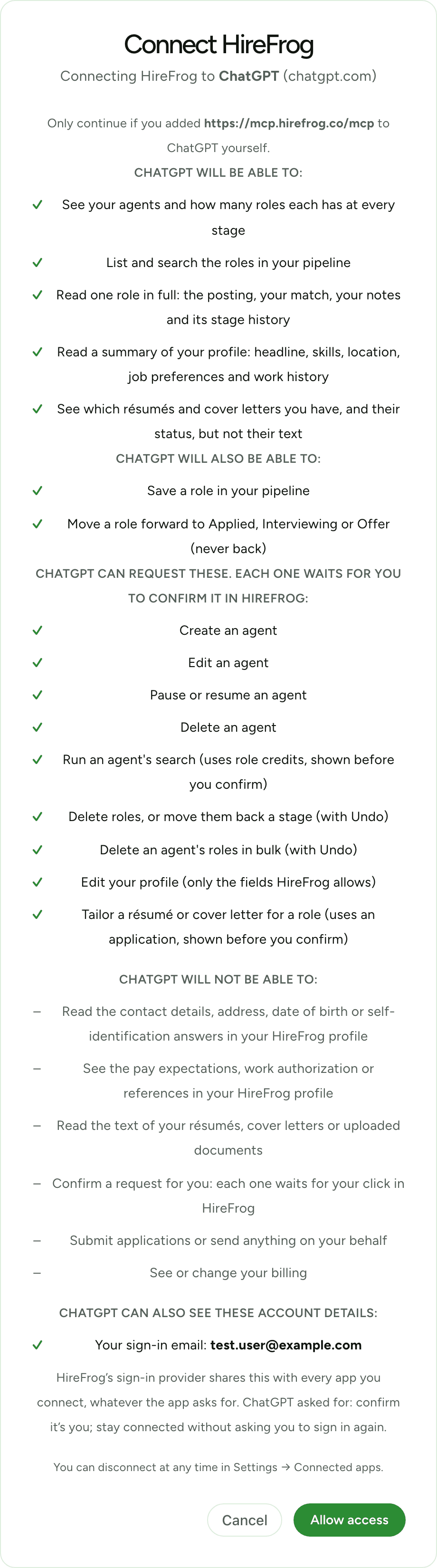
- Sign in to HireFrog if asked, check that the approval page says it’s connecting to ChatGPT (chatgpt.com), and approve. You’re returned to ChatGPT.

What the approval page shows
Before anything connects, HireFrog shows which assistant is asking (Claude or ChatGPT, and its address), exactly what it will and won’t be able to do, and which of your account details it can see. If the request didn’t come from Claude or ChatGPT, the page offers only Cancel. See what your assistant can and can’t do.
Try it
Start a new chat with the HireFrog connector on, and ask:
- “What’s in my HireFrog pipeline?”
- “Show me my best matches from this week.”
- “I applied to the Stripe role. Move it to Applied.”
Answers include an “Open in HireFrog” link to the role or agent.
Requests you confirm in HireFrog
Your assistant can save roles and move them forward on its own. Anything else, like creating or changing an agent, running a search, deleting roles, editing your profile or tailoring a résumé, becomes a request. Your assistant gives you a link; it opens HireFrog, where you see exactly what will happen, including any cost in role credits or applications, and choose Confirm or Cancel. Requests waiting for you are also listed in Settings → Connected apps. Nothing happens until you confirm, and deleted roles can be restored with Undo for a few minutes afterwards.
Disconnect
In HireFrog, open Settings → Connected apps and click Disconnect. Your assistant loses access at once. You can also remove the connector in Claude or ChatGPT.
Troubleshooting
The connection didn’t come from Claude’s or ChatGPT’s own sign-in address, or you disconnected it. Remove the connector in your assistant and add it again from Claude or ChatGPT.
HireFrog refuses any app that isn’t Claude or ChatGPT. If you didn’t start this from Claude or ChatGPT, cancel it.
You’ve reached one of the connector’s limits. The message says how long to wait; try again after that.
Requests you confirm in HireFrog expire after 24 hours, and an opened confirmation after 15 minutes. Ask your assistant again.
Start a new chat, and make sure the HireFrog connector is turned on for it.